
Manuals
KLANG:app 6.1 Preview: Redundancy Switch
The Redundancy Switch moves every KLANG:app and every KLANG:kontroller from one KLANG processor to a second one with a single button press. Each device keeps its mix: a :kontroller on mix 3 of processor A lands on mix 3 of processor B. A second button moves everything back. Use it when you run two processors and all musicians have to follow if one of them fails.
What the Redundancy Switch does
You choose two processors, Processor A and Processor B, in CONFIG > APP. Then you put two Action Buttons on the main menu: A>B moves everything from A to B, B>A moves everything back.
- One press moves every KLANG:app and :kontroller that is on the processor you leave. This includes the app you press the button on. Each device keeps its mix.
- Devices on other processors are not touched. You can use the switch in a venue that runs more than one KLANG system.
- Devices that already lost their connection move too, as long as they were last connected to the processor you leave.
- A device does not need the new processor right away. If the processor is still starting up, the device waits for it and connects as soon as it appears. This also works after the app or the :kontroller was restarted. See When the other processor is not there yet.
- A DiGiCo console can start the same move, see Following a DiGiCo console.
Setting up the two buttons
You set everything up in one KLANG:app in Admin Mode. Both processors should be switched on and visible in CONFIG > CONNECT while you do it.
Choosing processors A and B
A and B must carry the same mixes, because every device moves to the same mix number on the other processor. These pairs work:
- Two separate processors with different names that run the same show, for example one per DiGiCo console engine.
- A processor and its backup (see Redundancy). The backup carries the name of the primary plus an underscore, for example
KLANG(1)andKLANG(1_). ChooseKLANGas one processor andKLANG(1_)as the other. - A cascade and one other processor. A cascade appears once in the list, under its plain name. Each device then goes to the cascade member that carries its mix.
The lists show the processors KLANG:app finds on the network, one entry each. A backup keeps its full name with the underscore. KLANG:apps, :kontrollers and other devices that are not processors do not appear.
Step by step
- Go to
CONFIG > APPand open theAction Buttonssection. SwitchShow in Main MenutoON. - In
Redundancy Switch: Processor A, choose your main processor. InRedundancy Switch: Processor B, choose the second one. - Set
Action Button #1toRedundancy Switch A > BandAction Button #2toRedundancy Switch B > A. These two choices appear only after you have chosen both A and B. - Check the bottom of the main menu. It now shows the two buttons
A>BandB>A.

Action Buttons section of CONFIG > APP.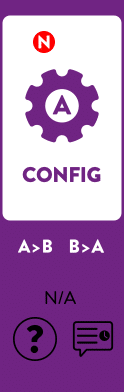
- A processor that is switched off right now stays selected and is marked
(offline). - The buttons remember “A” and “B”, not the processor names. Choose a different processor for A or B later, and both buttons use it right away.
- A and B must be two different processors. Names with
/,>,,,#or a quotation mark cannot be used. KLANG:app tells you when it refuses a choice and keeps the previous one.
Moving all devices to the other processor
Press A>B on the main menu. Every device on processor A moves to processor B and keeps its mix. Press B>A to move everything back.
- Each device that reaches the new processor shows
SWITCHED TO <processor> : MIX <n>for a moment. - With
Dante Followon, a :kontroller repatches its Dante inputs to the new processor by itself. Expect a very short dropout while it does. - If the new processor is off, or does not carry the mix a device is on, that device stays disconnected and waits. Press the opposite button to move everything back, or connect the device by hand in
CONFIG > CONNECT.
When the other processor is not there yet
A device that waits for its new processor shows WAITING FOR <processor> : MIX <n> instead of SWITCHED TO. On CONFIG > CONNECT the same line stays visible, with a Cancel button below it. The line goes away as soon as the device is connected.
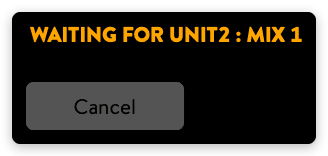
Press Cancel to stop waiting. The device then stays disconnected until you connect it, just as if you had disconnected it by hand.
Following a DiGiCo console
In a redundant DiGiCo system, each console engine often feeds its own KLANG processor. The console can then move all :kontrollers and KLANG:apps to the second processor, each on the same mix. It does this with a console macro, either by hand on a smart key or automatically when the console changes its audio master engine. This works without the Action Buttons.
- Use the automatic engine switch only when engine A feeds processor A and engine B feeds processor B. Every engine change then moves all :kontrollers and apps, whatever the reason for the change.
- Every move causes a very short audio dropout on the :kontrollers while
Dante Followrepatches them. - The console macros and the Action Buttons can be used side by side.
Advanced: the command behind the switch
Both the Action Buttons and the console macros send the same OSC command as a broadcast to UDP port 9111: /Ka/control/switchUnit with one string argument <from>/<to>, for example KLANG/KLANG(1_). Every KLANG:app and :kontroller on the processor named before the slash moves to the processor named after it.
- A source given with its index, such as
KLANG(1), moves only the devices of that cascade member. - Since 6.1, the command also moves devices from a processor to its backup, for example from
KLANG(1)toKLANG(1_).
How to set up the console macros, step by step: Switch all devices between processors. Full OSC reference: klang.com/osc.
Good to know
- One pair of buttons covers one pair of processors. A cascade in which every member has its own backup cannot be moved with a single A and B pair.
- A device waits until the processor appears. There is no time limit. If the processor is off or does not carry the device’s mix, press
Cancelor move the devices back. - Two processors with the same name: nothing moves. The same applies when two cascade members carry the same mix. Give every processor its own name.
- All devices must be on the same network. The switch is a broadcast, so the apps, the :kontrollers and both processors must be in one network segment (one broadcast domain).
- No password protects the switch. Any KLANG:app on the network can send it. Keep guest devices off the show network.
- Button pressed, nothing happens? If A or B is not set, KLANG:app shows
Redundancy Switch: set Processor A and B in CONFIG > APP > Action Buttons.
Testing the switch before the show
Try the switch once with your own setup before you rely on it:
- Press
A>B. Check that every KLANG:app and :kontroller lands on the same mix as before, and that the :kontrollers have audio. - Press
B>Aand check that everything comes back. - Switch processor B off and press
A>B. Check that the devices showWAITING FOR, then switch B on again and check that they connect by themselves. - If you use a DiGiCo console, trigger the macro or change the engine and check the result in
CONFIG > CONNECTon a few devices.
CONFIG > INFO > Collect Logs.